Step-by-step help for connecting, fixing errors, and running secure support sessions.
How to Remote Control a Computer
Install or run UltraViewer on both computers from the download page.
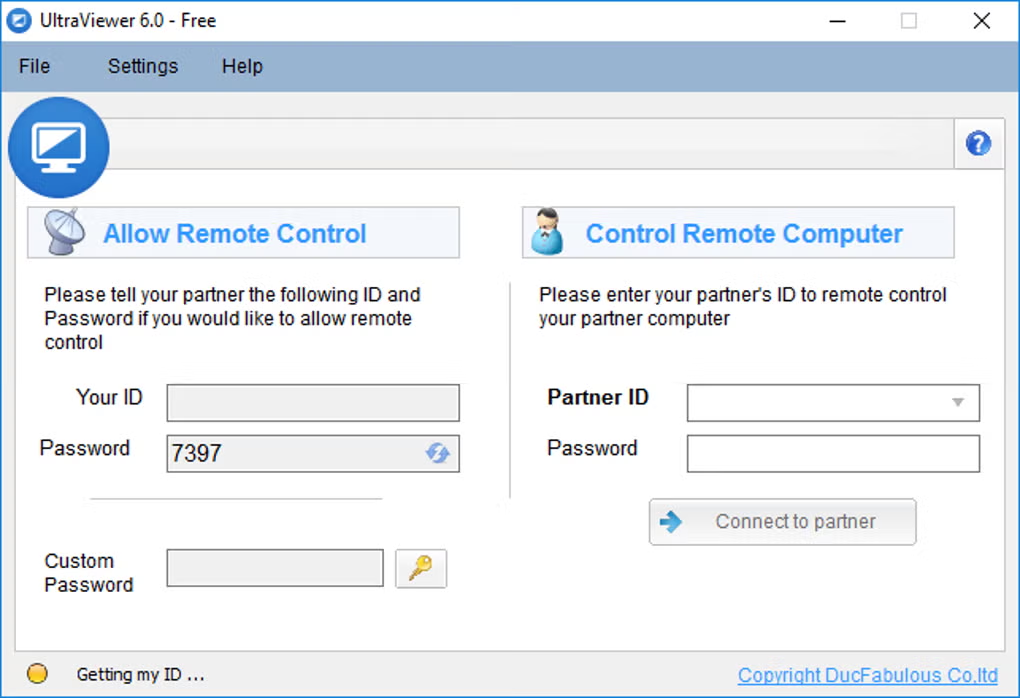
Ask your partner to open UltraViewer. They will see an ID and Password on the main window.
Enter the partner ID and Password in your UltraViewer client.
Click Connect and wait for your partner to approve the session if prompted.
Once connected, you can control their desktop, open chat with F1, and transfer files from the chat panel.
How to Allow Remote Control (Host Side)
Launch UltraViewer on the computer that will be controlled.
Send your displayed ID and Password to your supporter through a trusted channel (phone, ticket system, encrypted chat).
When they connect, review the permission prompt and accept only if you recognize the supporter.
Watch the screen during the session. You can take back control or disconnect at any time.
Change the password after the session if you share credentials frequently.
File Transfer Guide
During an active session, open the chat window and use the file send option. Transfers remain under partner supervision. Free accounts support large files up to 2 GB per file; Pro allows 4 GB and Premium allows 8 GB per file.
Confirm file names with your partner before sending installers or scripts.
Use ZIP archives for multiple files to reduce transfer errors.
Scan received files with antivirus before executing them, even from trusted partners.
Fix Connection & Network Problems
Cannot connect / timeout
Verify ID and password are current (password may rotate).
Ensure both sides have internet access and UltraViewer is allowed through Windows Firewall.
UltraViewer is designed to work behind NAT and routers without manual port forwarding. If corporate proxy blocks traffic, ask IT to allow UltraViewer.
Restart UltraViewer on both ends and try again.
Session drops or lag
Close bandwidth-heavy applications during support calls.
Use wired Ethernet when possible on the host machine.
Enable auto-reconnect in settings if available on your build.
Lower display quality if your plan supports FPS or quality tuning.
Wake-on-LAN not working
Confirm BIOS wake settings, same subnet requirements, and that the target PC is configured for unattended access. The remote machine must have been online recently for many networks.
Antivirus Warnings Explained
Security products may flag UltraViewer because remote access tools share behavioral patterns with unwanted software. A detection does not automatically mean the file is malicious.
Recommended steps
Download only from your official download page once links are configured.
Verify SHA256 hash matches the published value for that version on the integrity section.
If hash matches and you trust the source, submit the file to your antivirus vendor as a false positive.
Add a temporary exclusion only for the verified installer path, not entire system protection off.
Never run cracked or repackaged versions from unknown upload sites.
Independent testing of official build 6.6.124 reported a clean score with no virus, spyware, or malware. See trust & security for ethical use requirements.
Remote Support Best Practices
1.Always obtain verbal or written authorization before connecting to a customer machine.
2.Explain what you will do before making system changes, installing software, or accessing sensitive data.
3.Use chat to document steps and share KB article links during the session.
4.Disconnect immediately after the task is complete and confirm the partner sees the session end.
5.For recurring access, configure unattended mode only on managed devices with owner consent.
6.Keep UltraViewer updated to the latest version for security patches and compatibility with Windows 11.